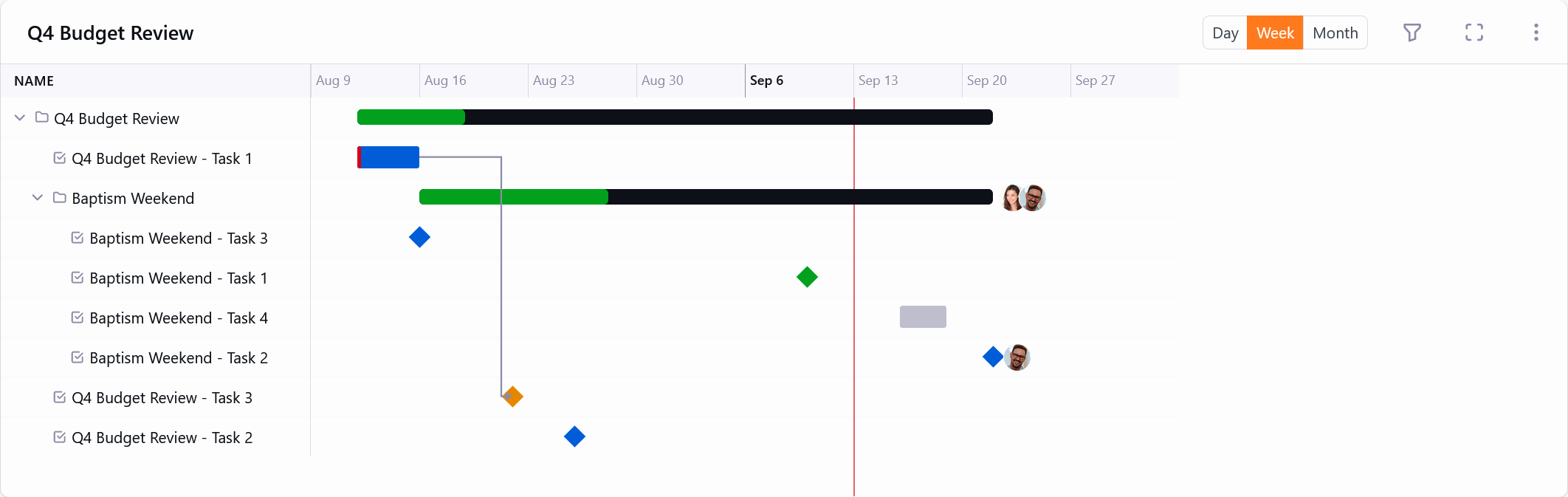
The Project Gantt block provides a timeline view of one project at a time. It shows the root project, all descendant sub-projects, and all tasks in one tree with a time axis, making it easier to answer "what happens when, what is blocked, and what is late?"
This view is especially useful once a project has enough moving parts that a normal task list no longer tells the full story. When tasks have start dates, due dates, dependencies, or nested sub-projects, the Gantt view lets you see all of that in one place and make scheduling decisions with better context.
Placement and Scope
In most organizations, people will reach this page in one of two ways: from the Projects menu when they want to choose a project to analyze, or from a specific project's detail page when they are already working in that project and need a better scheduling view.
- The block always shows one project at a time, resolved from the
ProjectId page parameter. - If no project is in context, or the viewer cannot see it, the block shows a project picker instead of an error.
- The plugin ships a dedicated
Project Gantt page in the Projects area. - When the Project Detail block is configured with a Gantt page, a Timeline button opens the current project directly into that page.
Reading the Chart
Once the chart is on screen, the main benefit is that it turns a complex project tree into something you can read at a glance. Instead of mentally combining tasks, sub-projects, blocked relationships, and due dates from several parts of the interface, you can see how the work stacks up over time.
- A task with both a start and due date renders as a bar across time.
- A task with only a due date, or with the same start and due date, renders as a milestone diamond.
- A project's bar is derived from its children rather than edited directly.
- Items with no dates stay visible in an unscheduled list below the timeline.
- Colors show state, including active, completed, cancelled, blocked, and overdue cues.
- Project bars show rolled-up completion progress based on the leaf work beneath them.
Controls and Scheduling
The controls are designed to support both reading and light replanning. Some people will only use them to hide finished work or highlight dependencies. Others will use dragging and resizing to actively adjust the timeline while they work through scheduling conversations.
- Zoom controls switch the time scale between day, week, and month.
- The filter control can hide completed and cancelled items when you want to focus on active work.
- The more menu includes compact density, dependency arrows, critical-path highlighting, and expand/collapse controls for the project tree.
- Dragging a task bar moves or resizes the task while preserving the rule that projects themselves are not dragged.
- Dragging a milestone updates its date without inventing a start date for due-only tasks.
- Recurring tasks only move their current occurrence; the recurring schedule itself is not rewritten by a drag operation.
- The browser's normal print command produces a simplified printed timeline.