Overview
Templates are a great way to deal with complex project and task structures that get used repeatedly. For example, your facilities department might have a set structure for repair work that might look something like this:
- Broken light switch (Originally reported project)
- Pre-inspection Project
- Order Parts if Required Task
- Confirm Shipment Arrival Task
- Perform Repair Work Project
- Schedule day and time for repair Task
- Confirm all parts and tools are available Task
- Update maintenance log Project
Creating a template for the above allows you to quickly convert a generic project into one that matches the full template. This allows you to do an initial read over the "Broken light switch" project and decide which template best fits the request.
When working with templates, you will see the term "root project". This is the project you are applying the template to.
Task Templates
Before we look at the details of a project template, let's take a look at a task template. Each project template can optionally have task templates. Each task template will generate a task for the created project. If you create a task template on the "root project" then the tasks will be added to the project you are applying the template to.
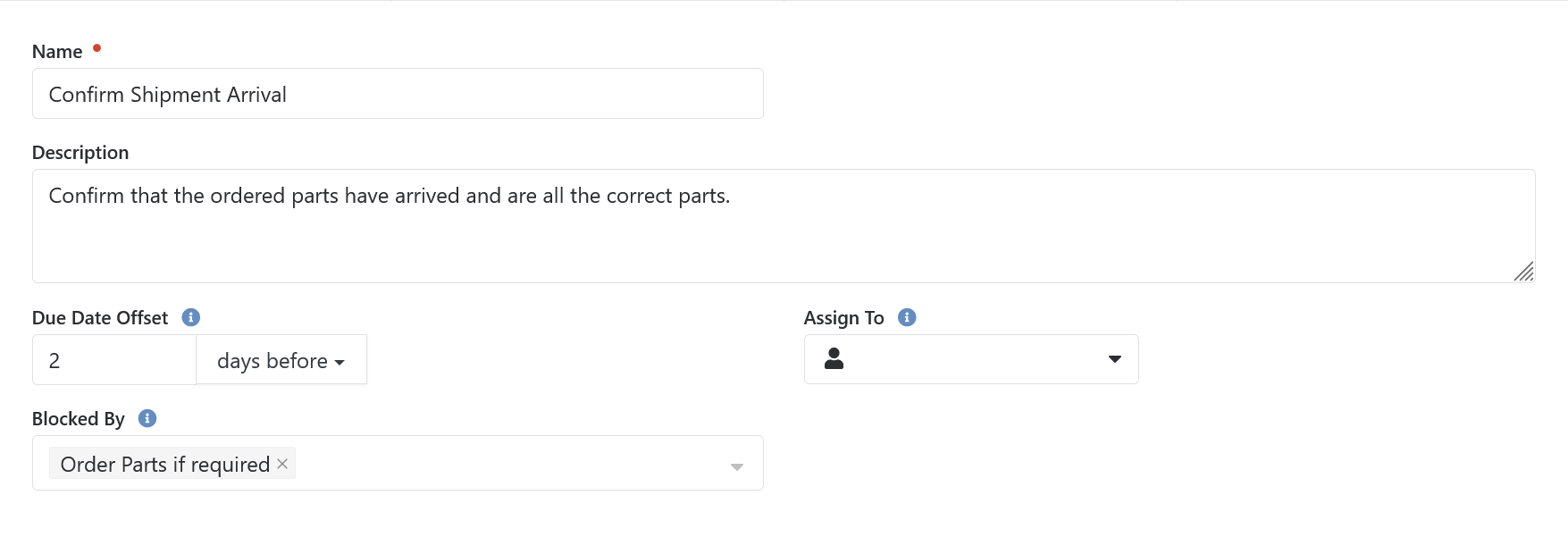
As you can see, this is fairly straight forward. The one item that probably needs a bit of context is the Due Date Offset. The simple idea here, is that the root project will usually have a due date. If it does, then whatever due date it has will be used along with this value to generate the final due date for the task. In this case, we want the task to be due 2 days before the root project is due. So if the root project is due on 2/24/2026, this task would be created with a due date of 2/22/2026.
Project Templates
Now that we know what the tasks look like, let's take a look at a project template. Similarly to tasks, each Project Template can have one ore more Projects that will be created. Each of these created projects can have Task Templates and further nested Projects.
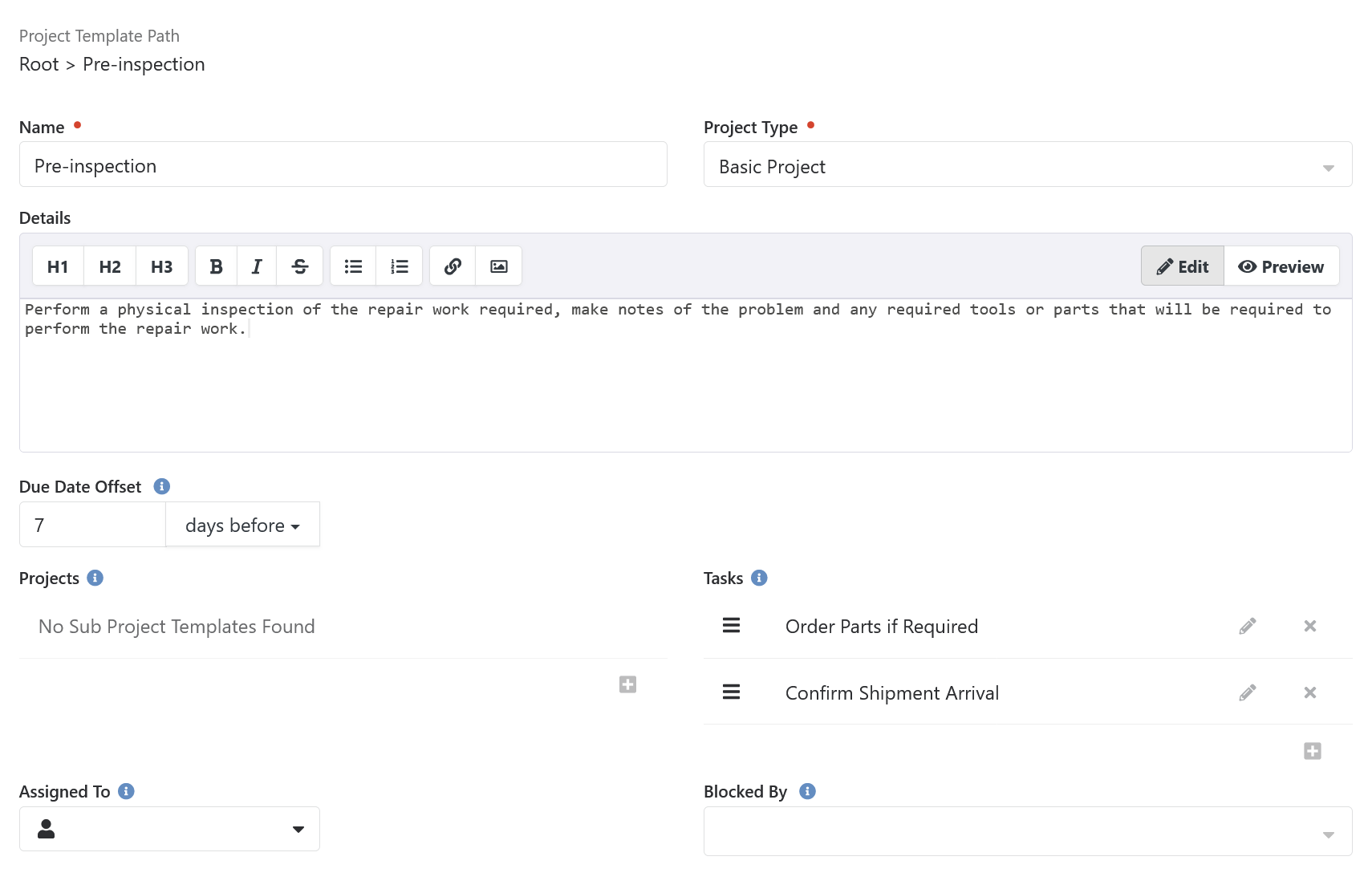
Just like task templates, most things should make sense. You can assign a name and project details, the project type and so on. The Due Date Offset works the same as it does in Task Templates.
A project created from a template can be blocked by any other project created by the template. And each project can be automatically assigned to different individuals.
Using Project Templates
When you are viewing the details of a project, you can click on the fa fa-ellipsis-v drop down menu in the top right corner. The menu will have an option for applying a template if there are any valid templates that can be applied to the project.
Note
When applying a project template to an existing project, the project types must match. If they don't you will need to convert the project to the correct type before applying the template.
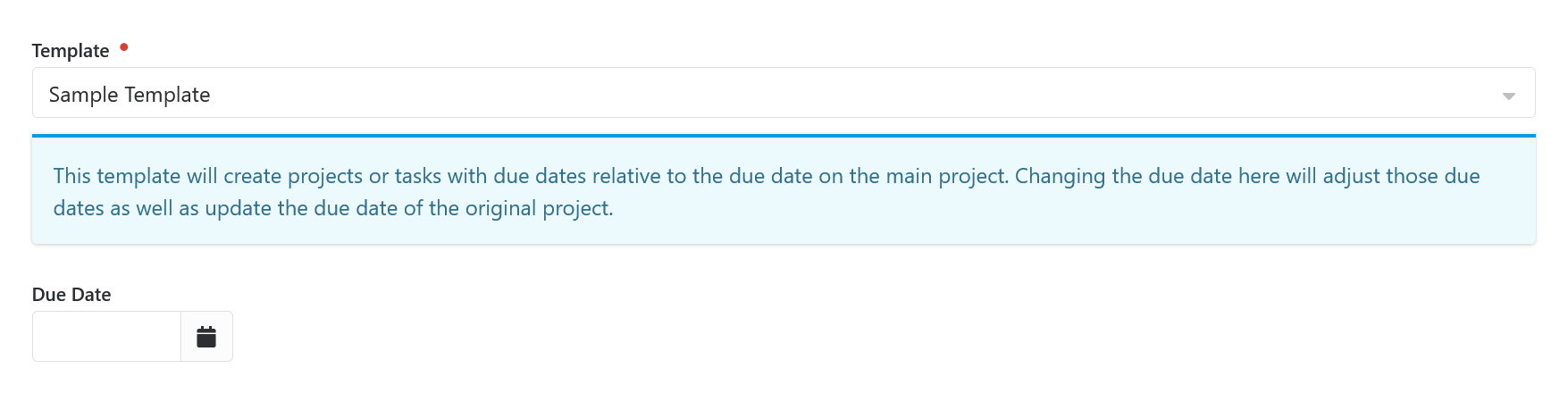
Because templates would often have due date offsets to properly be configured, we allow you to override the due date from the original project. This way you won't accidentally apply a template to a project that doesn't have a due date set and end up without any due dates on the sub-projects and tasks.
Lava in Templates
Project templates can now contain Lava in the text and attribute values they author. This allows a template to copy or derive values from the structure around it while it is being applied. For example, a sub-project can pull a supervisor name from the root project, or a task can include a formatted due date from the overall project context.
- Rendered template-authored values include sub-project names, sub-project details, template-set project attribute values, task names, task descriptions, and the template's portion of the root project's details.
- Caller-supplied values are different. For example, the root project's name is supplied by the person, workflow, automation event, or AI tool that applies the template and is not rendered through these template merge fields.
- The main merge fields available inside template-authored Lava are
ParentProject, RootProject, and CurrentPerson. - Templates are applied top-down, so a child item can safely read values that were already set on its parent earlier in the same template application.
- If the template contains malformed Lava, the raw template text is preserved and the exception is logged rather than blocking project creation entirely.
Supervisor: {{ ParentProject | Attribute:'Supervisor' }}
Start Date: {{ RootProject.DueDate | Date:'MMMM d, yyyy' }}